Project Description
This is a personal project I developed to explore how Excel can be used as a lightweight ERP system for a rental business. The workbook manages bookings, tracks inventory, calculates stock availability, and generates monthly sales insights—all within a centralised Excel dashboard.
I designed automated formulas to calculate stock on rent, stock in hand, and total rental days based on booking dates. The system also includes features like dropdown filters, slicers for month selection, and a PIN-protected sheet to restrict access to sales data. This project helped me deepen my understanding of enterprise information systems, data structuring, and Excel automation, turning business logic into a functional tool.
Why I Built this Project
I developed this project to simulate how a small-scale business can manage its operations using an Excel-based ERP system. The aim was to streamline rental gear tracking, monitor booking activity, and generate real-time insights like stock on rent, stock availability, and total monthly sales—all without relying on expensive software.
This project allowed me to apply data analysis, Excel automation, and dashboarding skills in a practical, business-focused context. It showcases how everyday tools like Excel can replicate core ERP functionalities such as inventory control, sales tracking, and customer management—making it an ideal lightweight solution for small businesses or startups.
Descriptions
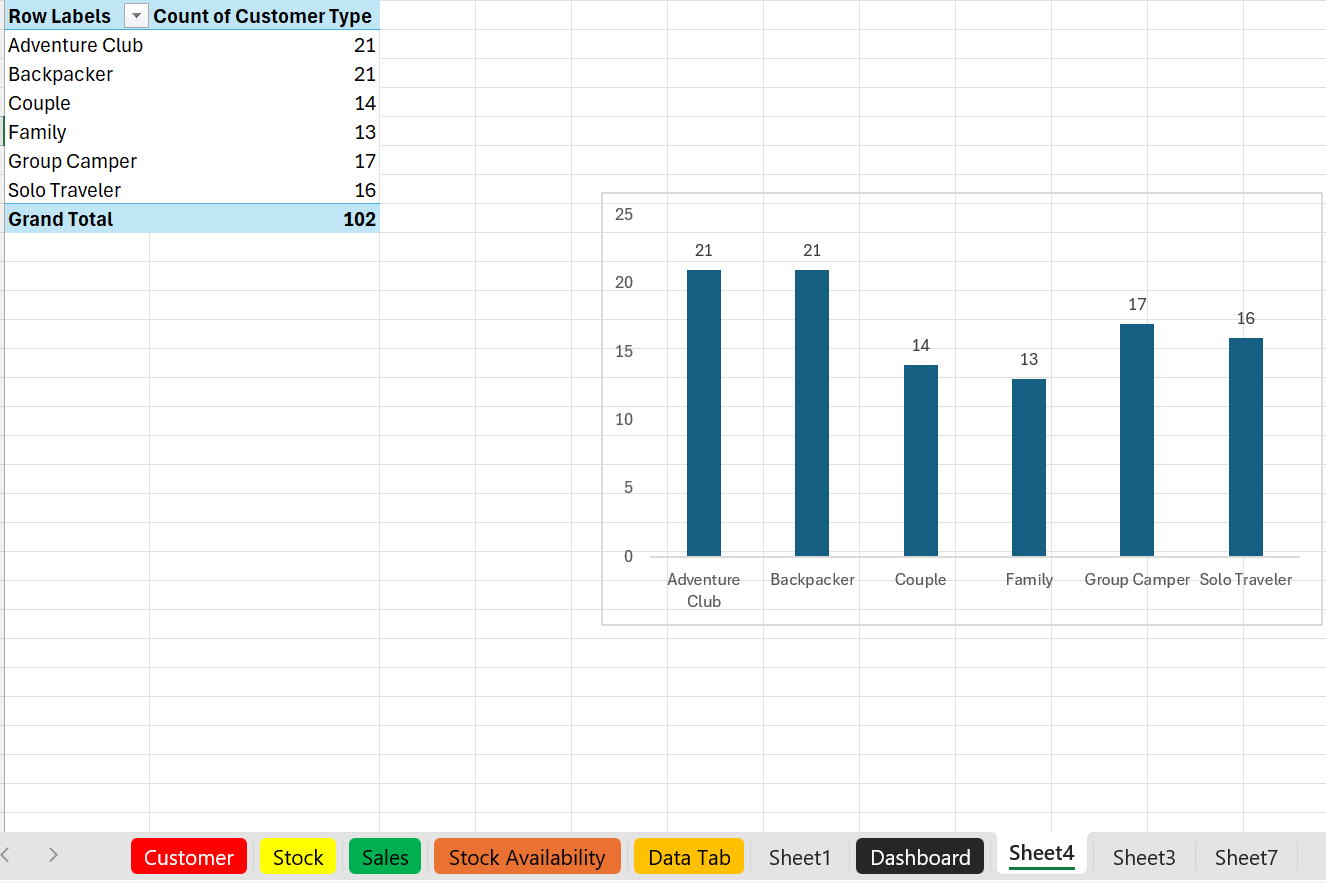
Pivot Table- Customer Sheet (Customer Type Column)
I created a PivotTable from the Customer sheet with ‘Customer Type’ as the row label and the count of each type as values. A bar chart was then generated to visually represent the number of customers in each category.
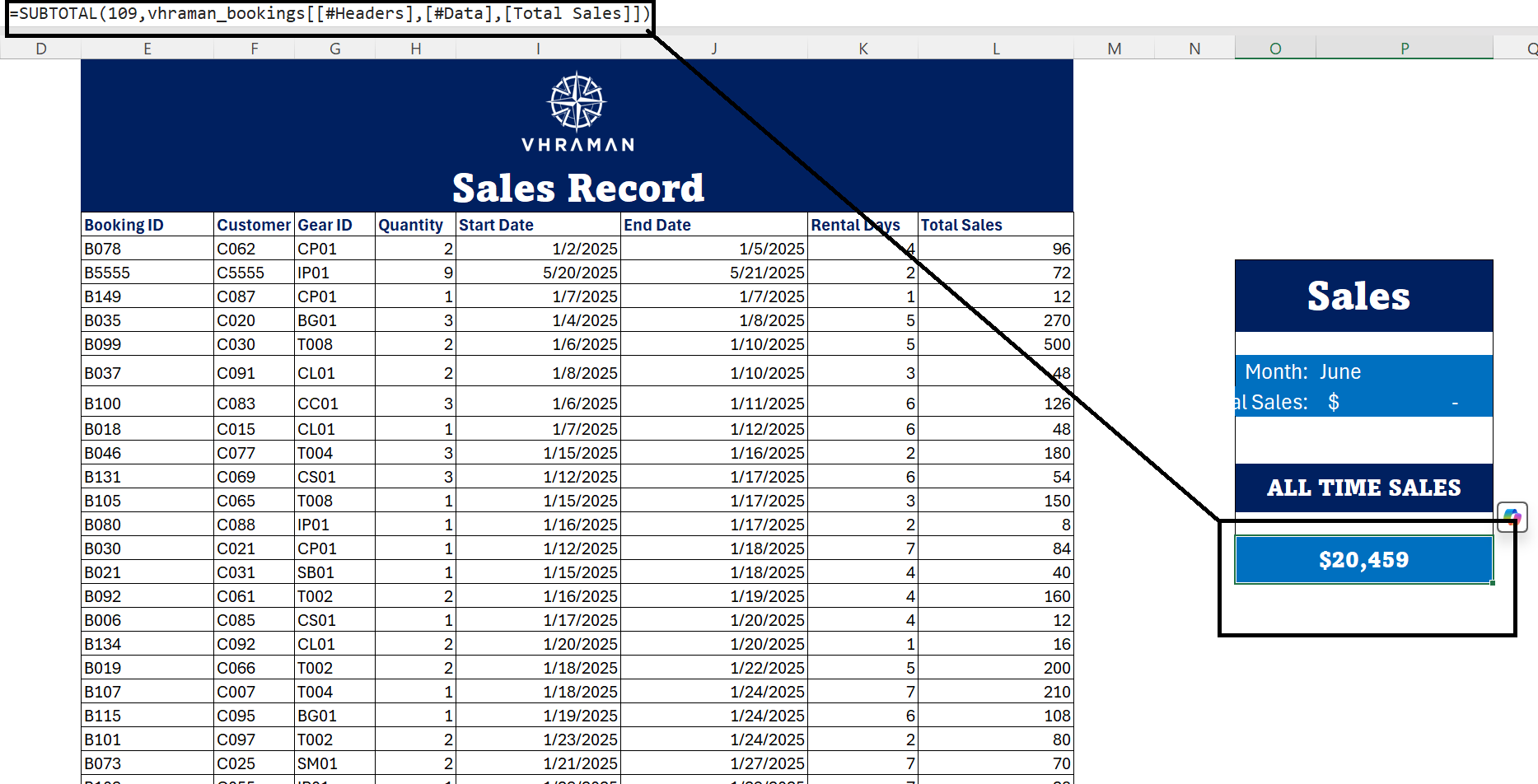
SUBTOTAL() – to calculate Total Sales
The SUBTOTAL formula is used in the Sales sheet to calculate the total sales, ensuring accurate results even when filters are applied. It helps summarize visible entries only, making it ideal for tracking filtered sales data efficiently.
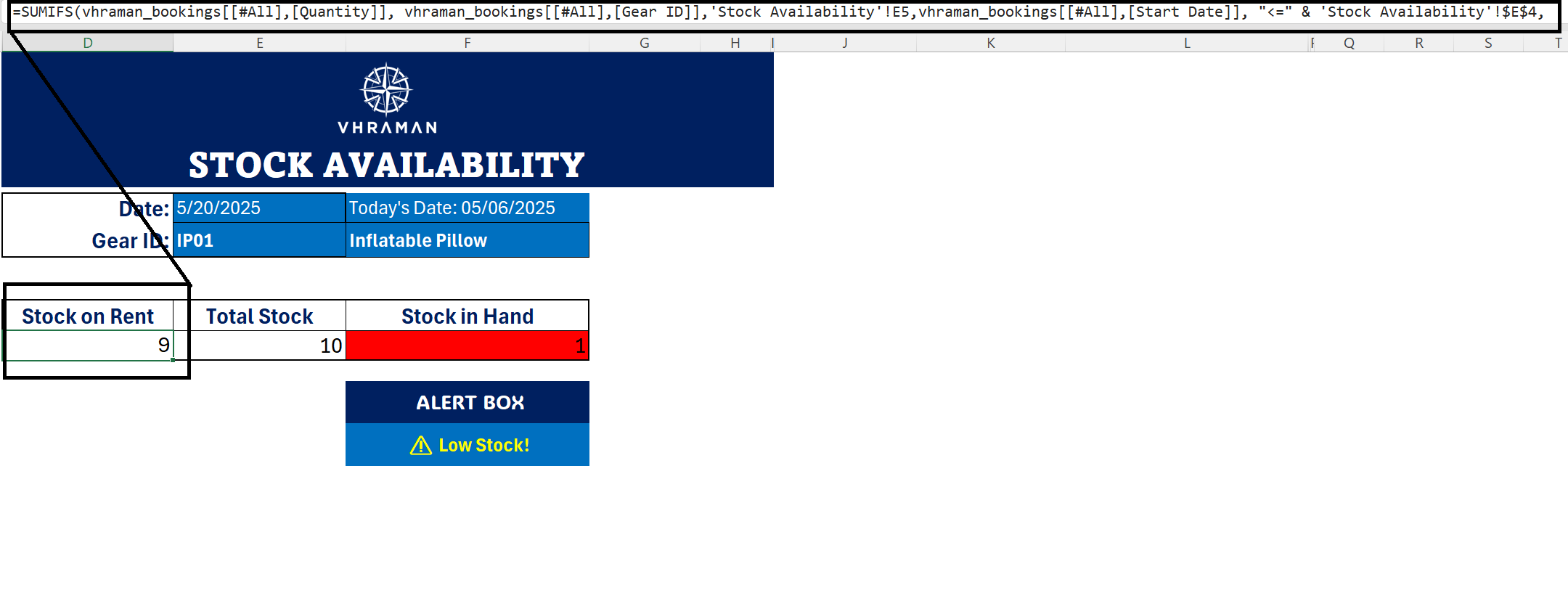
SUMPRODUCT() – to calculate Monthly Sales
The SUMPRODUCT function is used to calculate monthly sales by summing the Total Sales of bookings that overlap with the selected month. It allows multiple conditions—like start and end dates—to be evaluated together, providing precise totals for dynamic monthly reporting.
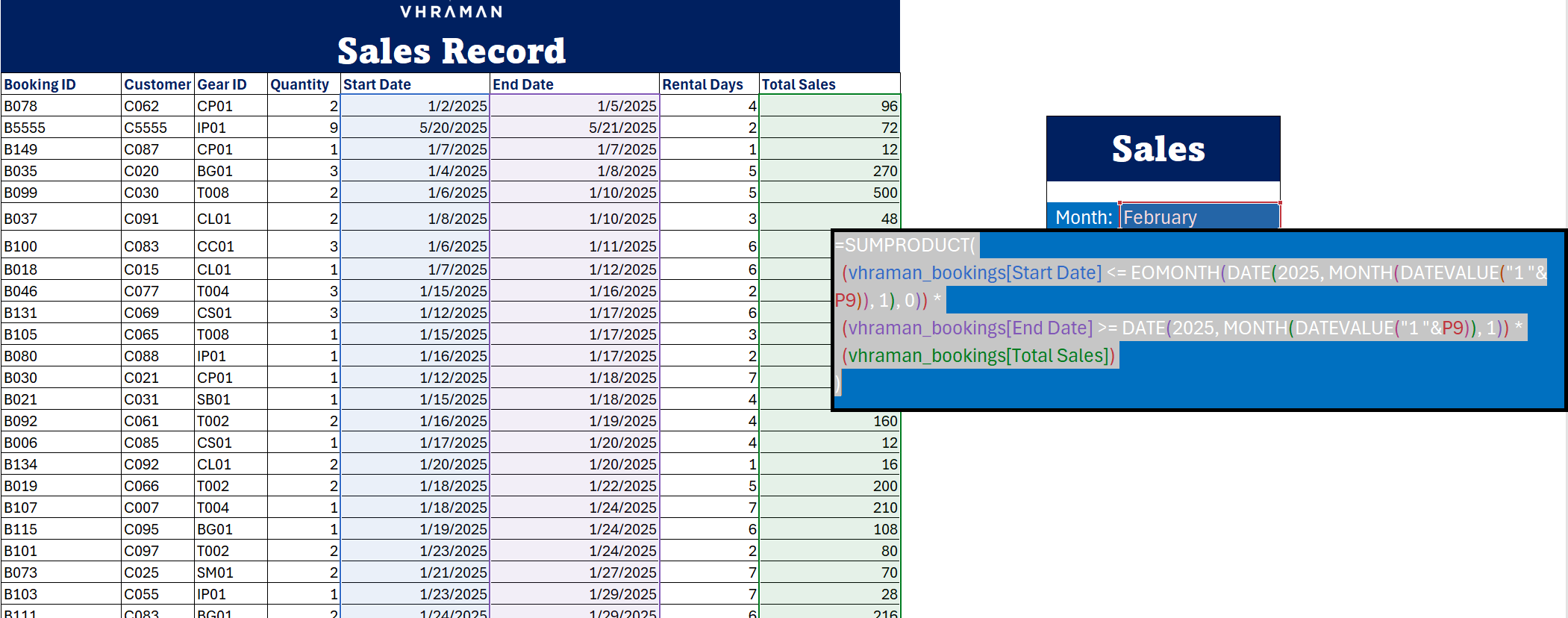
IF(OR())- LOW STOCK ALERT
The IF(OR()) formula is used to display stock status messages based on quantity. If the stock in hand was 0 or 1, it triggered a warning like “⚠️ Low Stock!”, helping quickly identify gear items that need restocking.
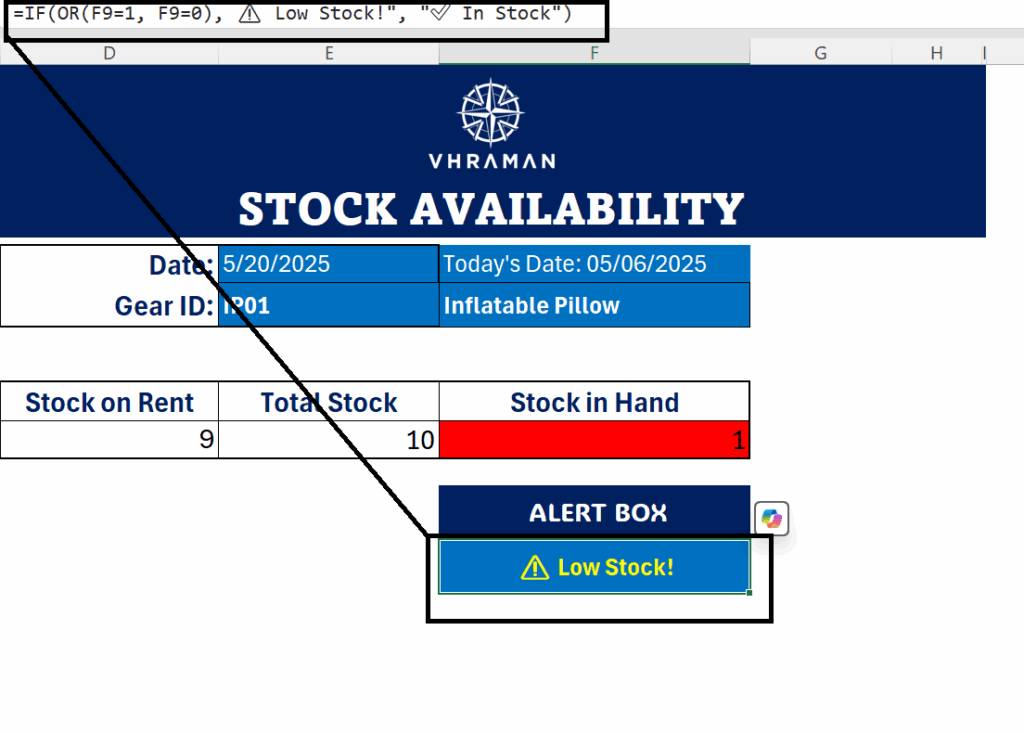
GEAR LIST (drop-down menu- DATA VALIDATION)
The Gear List is used as a dropdown selection in the Stock Availability sheet, allowing users to easily choose a specific gear item. This dropdown is linked to the stock tracking formulas, enabling quick and accurate checking of availability for each item without manually typing gear names.
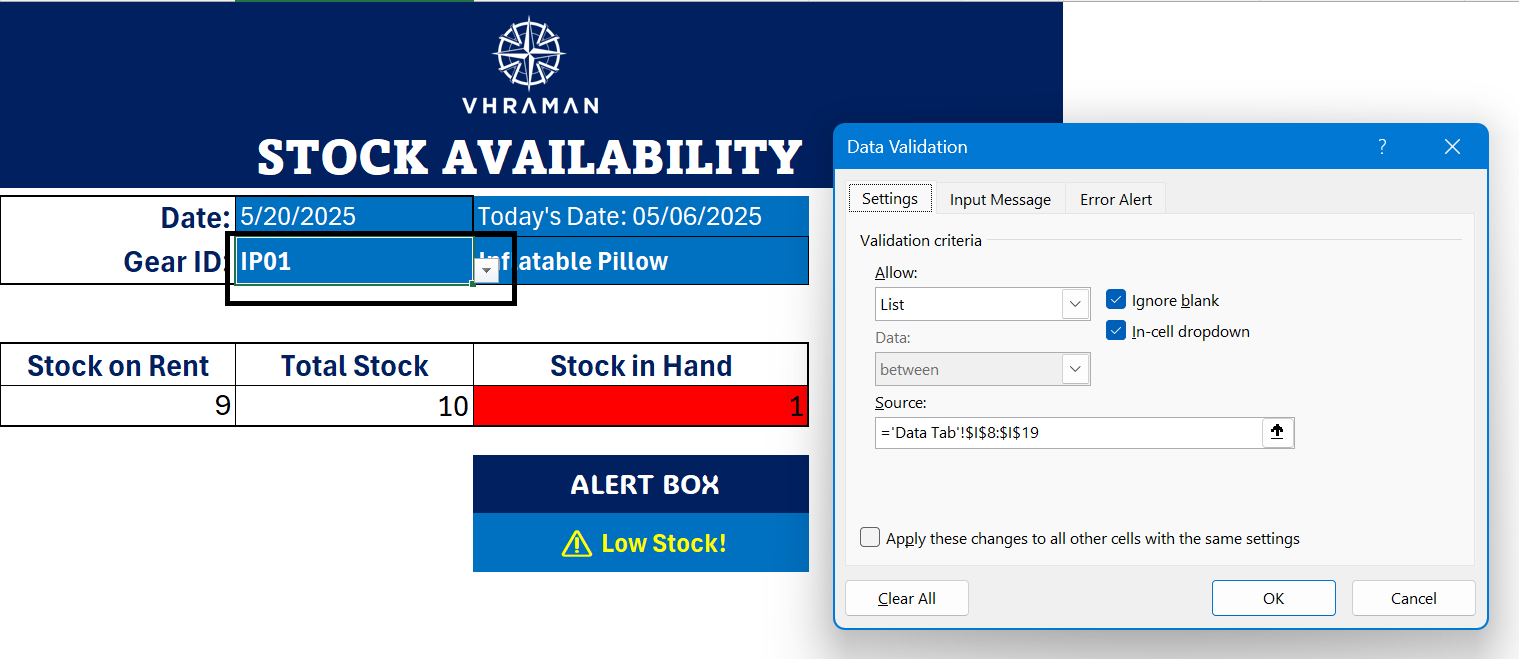
SUMIFS()- to calculate Total Stock on Rent
The SUMIFS formula is used to calculate the total stock currently rented out for a specific gear on a given date. It sums the quantities from the bookings where the gear ID matches and the rental period includes the selected date, ensuring an accurate count of gear that is out on rent at that time.
VLOOKUP()- TOTAL STOCK AVAILABLE
The VLOOKUP formula is used to find and retrieve specific TOTAL gear from the stock sheet.

PIN PROTECTED SALES SHEET
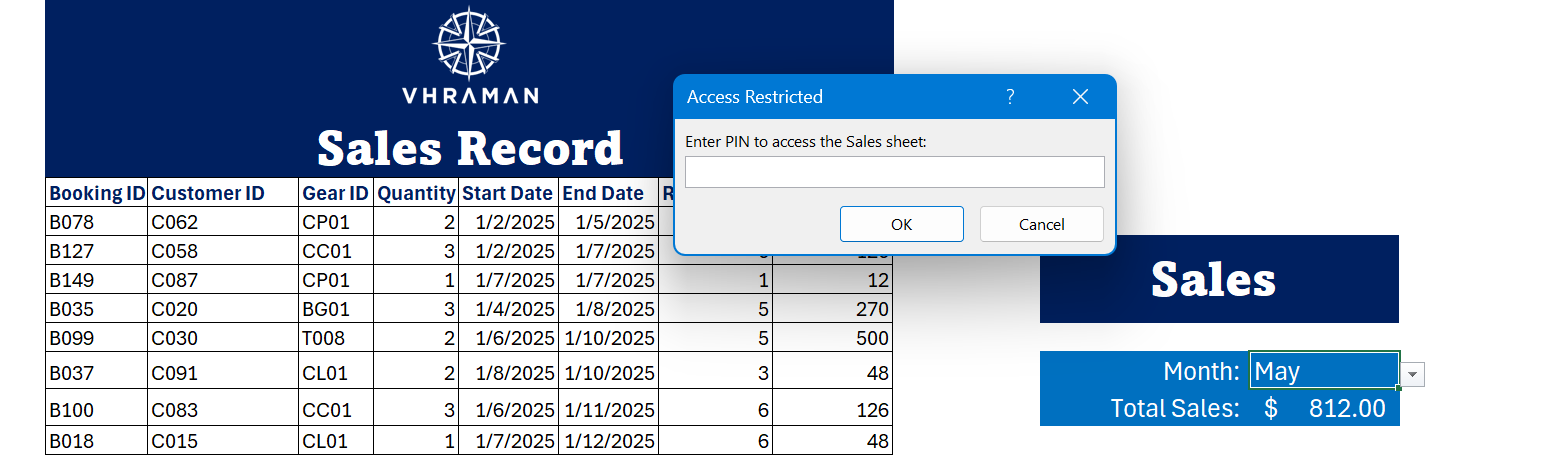
The Sales Dashboard is protected with a PIN to restrict access, ensuring only authorized users can view sensitive sales data. When the correct PIN is entered, users are granted access and automatically directed to the Customer sheet, enhancing both security and user navigation. This helps keep the sales information safe while making it easy to manage related customer data.
Private PinVerified As Boolean
Private Sub Workbook_SheetActivate(ByVal Sh As Object)
If Sh.Name = “Sales” Then
If Not PinVerified Then
Dim pin As Variant
pin = Application.InputBox(“Enter PIN to access the Sales sheet:”, “Access Restricted”, Type:=2)
‘ If user pressed Cancel
If pin = False Then
MsgBox “Access Denied. No PIN entered.”, vbCritical
Sheets(“Customer”).Activate ‘ Redirect to safe sheet here
Exit Sub
End If
‘ If user left blank or entered wrong pin
If pin = “” Or pin <> “8848” Then
MsgBox “Incorrect PIN. Redirecting you…”, vbCritical
Sheets(“Customer”).Activate ‘ Redirect to safe sheet here
Exit Sub
End If
‘ PIN correct
PinVerified = True
End If
End If
End Sub
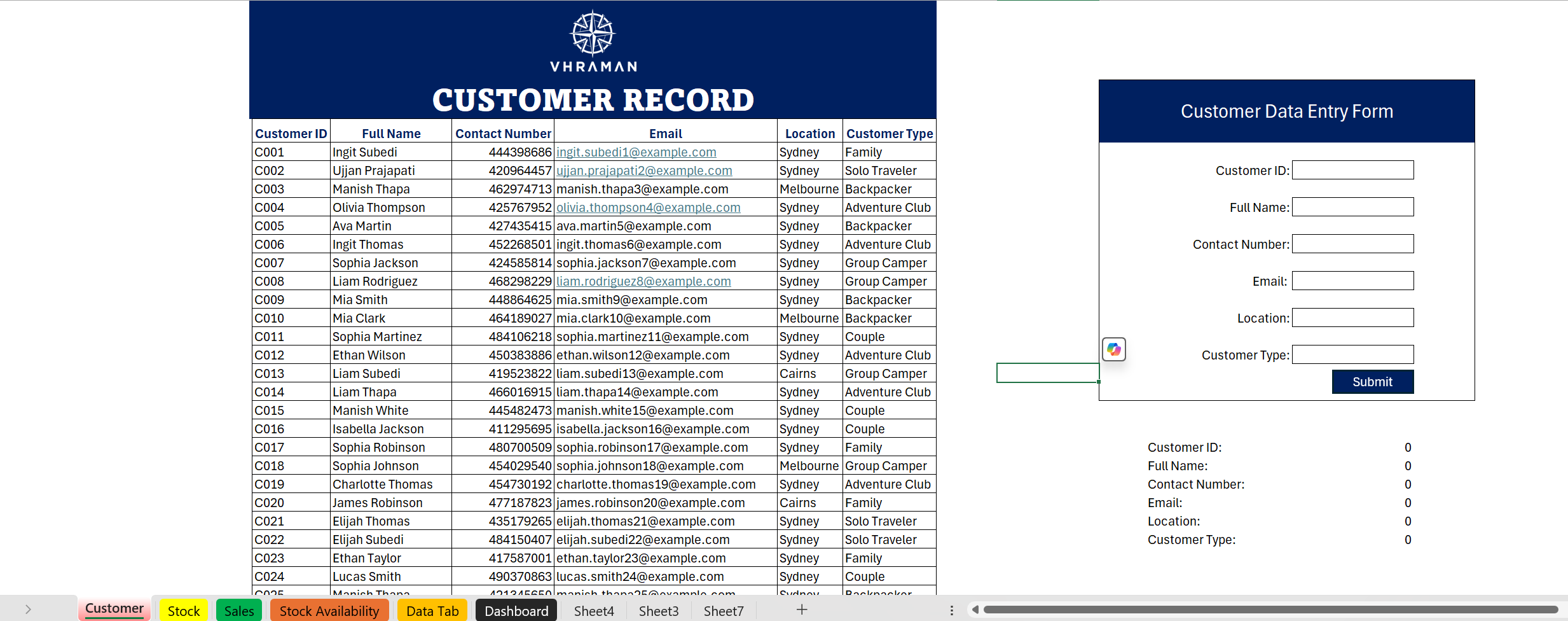
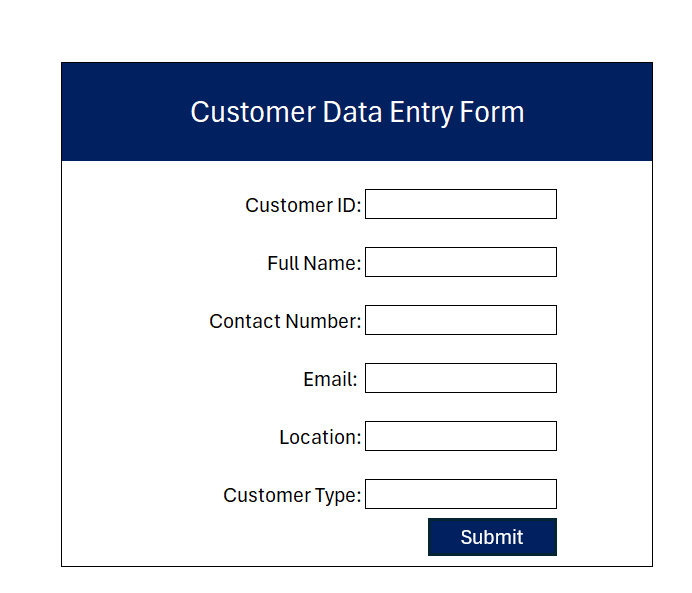
Customer Data Entry Form (Using Macros)
A custom customer data entry form is created using Excel macros to streamline the process of adding new customer records. Instead of manually entering data directly into the spreadsheet, users can input customer details through a simple, user-friendly form interface.
This form automates data validation and ensures consistent formatting, reducing errors and improving data accuracy. When submitted, the form automatically adds the entered information as a new row into the dedicated customer data table, keeping the dataset organized and up to date.